PhoneBox Guide: Turn Your Old Android Phone into a PC Dashboard (2026)
Discover PhoneBox, a free open-source tool that transforms an old Android phone into a live PC dashboard. Monitor system stats, control music, track AI coding quotas, and run widgets over USB or Wi-Fi.
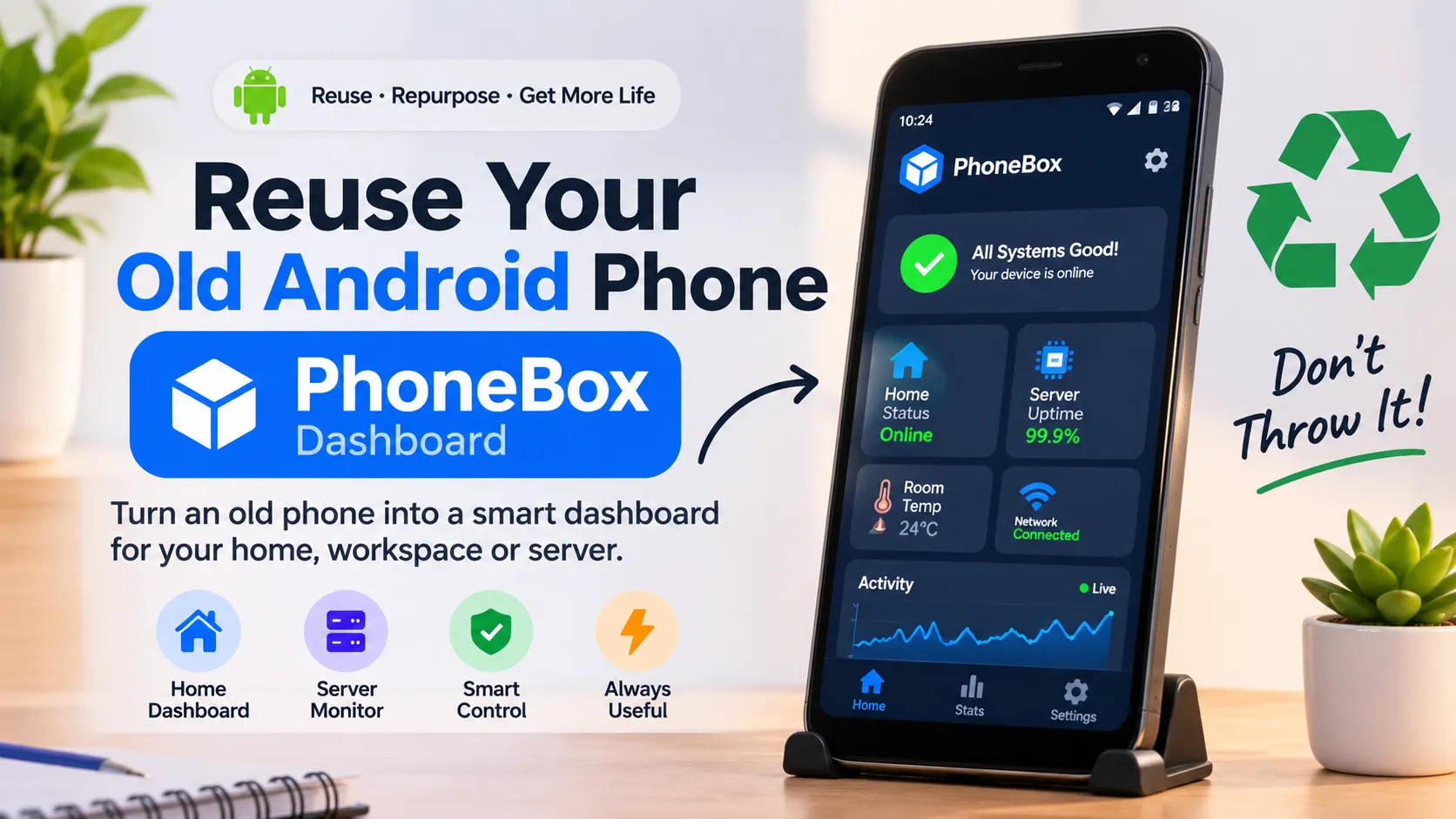
Reuse an old Android phone as a PC desk dashboard: the PhoneBox guide (2026)
That old phone in your drawer can get a job. PhoneBox is a free, open-source tool that turns an old Android phone into a live desk dashboard for Windows, Linux or macOS: system stats, AI coding quotas, music controls, weather, webhooks, all fed from your PC over USB or Wi-Fi. No cloud, no subscription, no $150 macro pad.
It’s a young project, first released November 7, 2026, and it already ships 55 widgets, 24 page templates and one genuinely clever party trick: your Claude Code permission prompts show up on the phone, with Allow and Deny buttons. This guide covers what it does, why it’s worth your drawer phone, and the honest limits.
(Quick disambiguation: this PhoneBox is a GitHub project by Ersin Koç. It has zero relation to the Canadian mobile carrier app of the same name.)
What is PhoneBox?
PhoneBox is an open-source desk panel: an Android app that runs full-screen on a spare phone, plus a small agent program on your computer that feeds it. You design pages in a browser editor on the PC, drag widgets onto a 12 × 6 grid, and the phone renders them live. The code is on GitHub, MIT-licensed, and it picked up 97 stars and 95 commits in its first weekend, with version 0.7.1 out by November 9, 2026.
The connection is USB first. Plug the phone in and it wakes up and shows the panel. After one pairing it also works over Wi-Fi, or over Tailscale if the phone and PC live on different networks. Everything stays local.
Why reuse an old Android phone instead of binning it?
Because the math is ugly and the hardware still works. The world produced 62 million tonnes of e-waste in 2022, is on track for 82 million tonnes by 2030, and formally collected and recycled just 22.3% of it (ITU / UNITAR).
Phones are a big slice of that. A GSMA survey across 26 countries found 5 to 10 billion “dormant” phones sitting in drawers worldwide, and about 75% of people keep at least one old phone at home. The average phone gets replaced at around 3 years, mostly because of battery wear or slowdown, while the screen, speakers, Wi-Fi and processor keep working fine.
So the reuse case writes itself. A retired phone is a small computer with a nice screen and a battery, and PhoneBox gives it a full-time desk job.
Can you use an old phone as a monitor for your PC?
As a dashboard, absolutely. As a mirror of your desktop, that’s a different category of tool and PhoneBox doesn’t try to be it. Instead of copying your screen, the phone shows a panel you design: only the numbers and controls you actually want in your peripheral vision.
Think of it like a car’s dashboard next to your windshield. You don’t need your whole desktop duplicated next to the keyboard; you want CPU load, the weather, your music, and a few big buttons. That’s the niche, and a 5-year-old phone with a cracked corner handles it fine.
For screen mirroring specifically, tools like Duet Display or Spacedesk exist. For a widget panel that also kills processes, answers your AI coding assistant and shows your calendar, PhoneBox is the one doing that job.
What can the PhoneBox dashboard show?
Quite a lot, for a 0.7.x project. The widget catalog splits into six groups:
- Computer: CPU, GPU, RAM, disks, network, ping, charts, gauges, top processes (tap one to end it, or end all of them), Docker containers, OBS status, mic and camera “on air” indicator, and command widgets that show PowerShell, bash or zsh output.
- Time and work: clocks, analog and word clocks, world clocks, calendar, pomodoro, timers, checklists that reset daily, notes.
- Weather and sky: forecast, sun and moon, moon phase, air quality with European AQI details.
- Media: now playing with controls and volume, on Windows from any app, on Linux via MPRIS, on macOS including browser video.
- AI and code: Claude and Codex quotas, AI sessions, GitHub review requests and CI status.
- Automation: Stream Deck-style shortcut keys that launch apps and URLs, pushed values and notifications from webhooks, Home Assistant entities, custom sandboxed HTML widgets.
Weather, exchange rates, crypto prices and Hacker News come from free public APIs (Open-Meteo, Frankfurter, CoinGecko, the HN API) fetched by the phone itself, with no API keys, and they cache their last data offline.
The Smart Stack widget is the sleeper feature: up to 12 widgets sharing one slot, swipe vertically to flip through them. It basically turns one grid cell into a rotating stack of cards.
How does PhoneBox work with Claude Code and AI coding tools?
This is the part that sold me on reading the docs. PhoneBox shows your Claude and Codex quota burn rate with a forecast, so “at this pace: full in 1 d 5 h” sits on your desk instead of hiding in a terminal. Tap an AI session and you get its model, timing, token count, context window and the last tool it touched. The phone buzzes when a session finishes or needs you.
The flagship trick is Claude Code permission prompts. When Claude Code wants to run a command or edit a file, the phone shows the project, the tool and the command, with Allow and Deny buttons. PhoneBox installs a PermissionRequest hook into ~/.claude/settings.json (keeping a backup next to it), and if the phone isn’t connected or you don’t answer in time, Claude Code falls back to asking in the terminal as usual.
GitHub review requests and CI failures on your pull requests land on the panel too. If you code with AI all day, the phone becomes the notification surface your terminal never was.
What do you need to set it up?
An Android 9 or later phone, a USB cable, and about ten minutes. Android 9 covers 97% of active devices according to Google’s own platform stats from October 2026, so almost any phone from the last 7 years qualifies.
On the PC side you need the .NET 10 SDK and adb. The install scripts handle the rest:
- Windows 10/11:
wingetinstalls the dependencies, thenscripts\install.ps1 -Apk -Autostartsets up the agent and phone app together. Scoop and winget packages are ready too. - Linux:
scripts/install.sh --apk --autostart, with a systemd user service for autostart. - macOS: the same script, installing a launchd agent instead.
Turn on USB debugging on the phone, plug it in, and the panel appears. The settings live at http://127.0.0.1:8765 in your browser, or in the Windows tray icon. A kiosk mode can pin the screen and set the panel as the phone’s home screen so it survives reboots, with no root required.
What happens to the battery if it’s plugged in forever?
Good news: PhoneBox thought about this before you did. Its battery care feature keeps the charge between two levels, 50 to 80% by default, because a phone that stays plugged in at 100% cooks its battery. Since Android won’t stop charging without root, PhoneBox switches the power where it comes from: a smart plug through Home Assistant, or a USB hub with switchable ports via uhubctl. The panel keeps running over Wi-Fi while the USB power is off.
The science checks out. Lithium-ion cells age fastest near full charge, which is why Apple ships an 80% charge limit option on iPhone 15 and newer and pauses Optimized Battery Charging at 80% (Apple Support). A desk panel that manages its own battery is the difference between a phone that lasts a year on your desk and one that lasts five.
Is PhoneBox private and safe?
Yes, and the architecture explains why. The phone’s interface never talks to your PC directly: requests route through a native proxy over the adb USB tunnel, or over Wi-Fi through HTTPS with a pinned self-signed certificate and a secret key delivered during USB pairing. The settings server binds to 127.0.0.1, so nothing on your network can reach it by default.
Webhooks have their own key that opens only the push endpoints, never the phone API. On macOS, the Claude token is read from the Keychain. And the whole thing is MIT-licensed open source, so you can read every line before you trust it, which is more than most desk gadgets can say.
What does it cost compared to a Stream Deck?
$0. For comparison, Elgato’s 15-key Stream Deck MK.2 lists at $149.99 (Elgato via Front Desk Review), and it’s a lovely device. PhoneBox gives you an unlimited grid of launcher keys, macro buttons and live gauges on hardware you already own, plus a battery, a touchscreen and a speaker the Stream Deck doesn’t have.
The trade-off is polish. A Stream Deck works 5 minutes out of the box with a commercial ecosystem behind it. PhoneBox is a 3-day-old open-source project where you run the install script yourself and, occasionally, read an issue tracker. You’re paying with tinkering time instead of money.
What are the honest limitations?
- It’s brand new. First release November 7, 2026, version 0.7.1. The feature list is deep for its age, but expect rough edges and fast changes.
- Platform-dependent stats. CPU temperature on Windows needs LibreHardwareMonitor running; GPU usage needs an NVIDIA card (
nvidia-smi) or Apple silicon; Linux and macOS can only end your own processes. - You have to turn on USB debugging. It’s a standard developer setting, but you’re flipping it on deliberately, and it belongs off when the phone travels.
- The phone needs power. Screen-on all day means a charger, which is exactly why the battery-care feature exists.
- No screen mirroring. If “old phone as monitor” means extending your Windows desktop to you, PhoneBox is the wrong tool for that specific job.
Should you try PhoneBox?
Yes, if you own both a drawer phone and a desk. The setup is one script, the payoff is a genuinely useful second screen for system stats, AI sessions and desk life, and the whole thing costs an hour of tinkering. Reusing a phone you already own is the cheapest hardware upgrade available in 2026.
Skip it for now if you want a finished commercial product with support tickets, or if you specifically want a portable second monitor rather than a dashboard.
My take: projects like this are the software side of the drawer economy. The UN counts tens of millions of tonnes of e-waste, the GSMA counts up to 10 billion dormant phones, and here’s a tool that quietly converts one of them into the most useful object on your desk. The phone you stopped carrying deserves better than a drawer.
FAQ
How can I reuse an old Android phone?
Run a desk panel like PhoneBox on it. Other routes: a security camera, a dedicated music player, or trade it in. A desk panel is the option that keeps the phone useful every day while it charges.
Can I use an old phone as a monitor for my PC?
As a dashboard, yes, tools like PhoneBox do that well. As a true screen extension for your desktop, use a mirroring app like Duet Display or Spacedesk instead; the two jobs need different software.
Does PhoneBox need root access?
No. Kiosk mode, screen pinning and boot startup all work without root. Battery care works around Android’s charging rules by switching a smart plug or USB hub instead.
Does PhoneBox work over Wi-Fi?
Yes. Pair once over USB, then unplug and the phone connects over Wi-Fi automatically. Different networks entirely? Tailscale bridges that, and the agent offers its Tailscale address out of the box.
Sources: PhoneBox GitHub repository · ITU / UNITAR Global E-waste Monitor 2024 · GSMA survey on dormant phones · Android distribution stats (Google data) · Apple Support on charge limits · Stream Deck MK.2 price tracking
Publishing notes (delete before posting)
- Suggested title tag: Reuse an Old Android Phone as a PC Dashboard: PhoneBox Guide
- Suggested meta description: PhoneBox turns an old Android phone into a PC desk dashboard: system stats, AI coding quotas, media and webhooks over USB or Wi-Fi. Free and open source.
- Suggested slug:
reuse-old-android-phone-phonebox-dashboard - Primary keywords used: reuse old Android phone, PhoneBox dashboard, old phone as monitor (each placed 2-3 times, in title, H2s, intro and FAQ, no stuffing)
- AI search optimization: question-based H2/H3s, answer-first sections, disambiguation note for the carrier name, FAQ block for snippet capture, honest limitations for E-E-A-T, real linked sources throughout